Backup Configuration Page
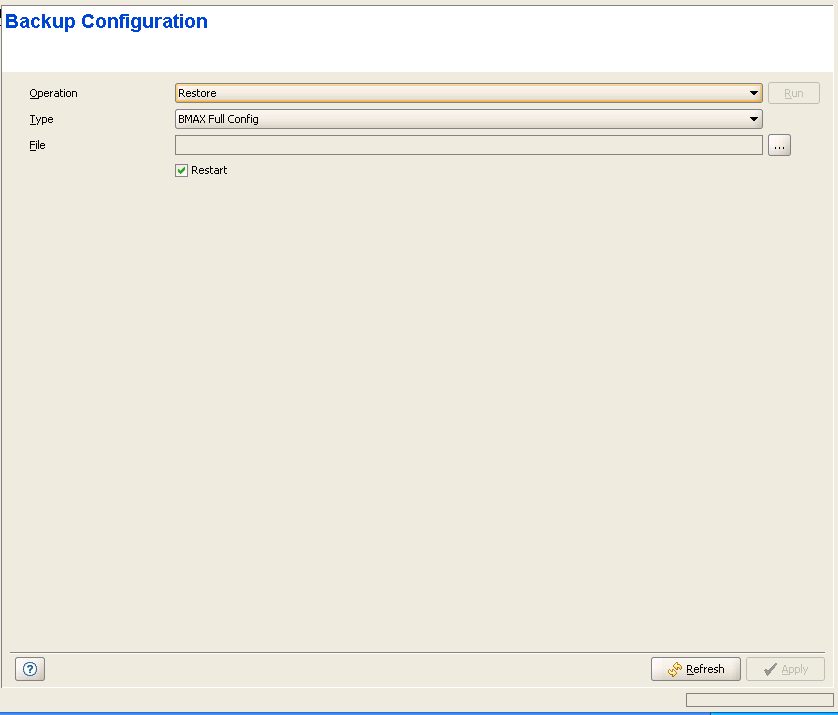
The Backup Configuration page enables loading to the PC running the AlvariCRAFT application backup files of the modular Base Station/Micro Base Station configuration or loading backup files from the PC to the device.
|

|
To load to the PC a Configuration Backup file of the device: |
1 In the Operations drop-down menu, select Backup.
2 Select the required type in the Type drop-down menu.
The following backup file types can be created:
- Full Config: The entire modular Base Station/Micro Base Station configuration (excluding Passwords and basic IP parameters of the MGMT and DATA ports - IP Address, Subnet Mask and Default Gateway).
- Services and Service Profiles: All the profiles and configurations associated with service (General Service parameters, Subscribers, Services, Service Profiles, Forwarding Rules, Priority Classifiers, QoS Profiles). Not applicable in IP CS Switching Mode.
- Service Profiles: All the profiles associated with services.
- Filters: All the configurations of Filtering Rules, Interface Filtering and MAC Address Deny List. Not applicable in IP CS Switching Mode.
- Traps: The configuration parameters for all traps.
- File Licensing: All license related information, including total, available and used licenses, CPEs with allocated licenses (local or permanent), CPEs with grace or temporary grace licenses and CPEs for which grace license expired.
3 Click on the Run button. A Save window will be opened, enabling you to select name and path for the file to be saved. The default file name is <Device Name> <File Type> <date in the format yyyymmdd> <time in the format hhmm>.res.
4 Select location and name and click Save.
|
To load to the PC a Configuration Backup file of the device: |
1 In the Operations drop-down menu, select Backup.
2 Select the required type in the Type drop-down menu.
3 Click on the browser button next to the File text box to open the Choose window, enabling you to select the required Configuration Backup file that must be available on the PC running the AlvariCRAFT application.
4 After selecting the file, the read-only File text box will display the path to the selected file.
5 If you wish to restart the device after loading the file, mark the Restart check-box. Otherwise make sure that it is not marked.
6 Click on the Upload button. The operation's results will be displayed.
|
|

