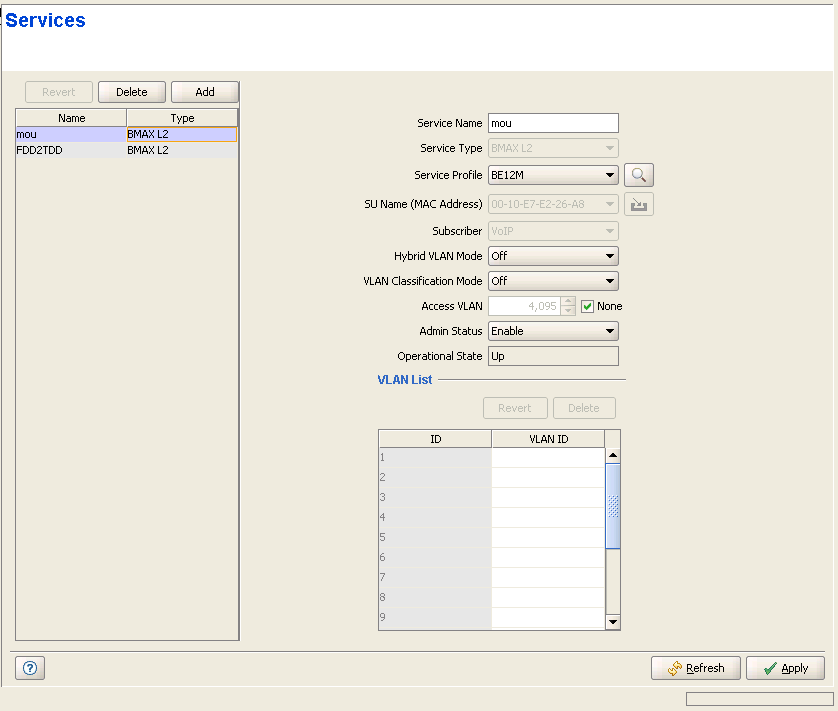
Services Page

The Services page displays a list of all Services in the database of the Base Station/Micro Base Station. It also enables modifying existing Permanent Services, deleting Permanent Services from the database of the device, and defining new Permanent Services. The device can hold up to a total of 4095 Services.


NOTE

A Permanent Service is a Service defined in the device for a Permanent SU. A Temporary Service can be granted to a Temporary SU by a RADIUS Authentication Server. A Temporary Service may also be granted by the Base Station (based on the Default Service Profiles) when a RADIUS server is not available, or when the SU is rejected by the RADIUS server, provided the device operates in Quick Service Mode and the SU uses the "quick" User Password "quickynikinyoky". A Temporary Service is given a default name of <SU Name>#<Number>. A Temporary Service cannot be defined, deleted or editted.

Services Page


The Services page comprises two sections: The Services Table (on the left side) and the Service Editor section (on the right side). The Editor is available only when either selecting a Service in the Services Table or adding a new Permanent Service.

The Services table provides the following details for each of the existing Services:

Parameter

Description

Name

The Services Name.

Type

The Service Type: L2, PPPoE or VoIP.

Temporary Services are displayed with a pink background.


To view the details of a Service:

Select a Service's entry. The current Service configuration details will be displayed on the right side of the page.


To delete Permanent Service(s) from the device:

Select one or several Service entries, click on the Delete button and then click Apply to remove the selected Service(s) from the Base Station/Micro Base Station. If you want to cancel the requested delete operation before clicking Apply, click on the Revert button.


To add a new Permanent Service:

Click on the Add button. The Service Editor will be displayed on the right side of the page. To add a new Service to the database of the Base Station/Micro Base Station, fill in the necessary parameters and click Apply.


To modify an existing Permanent Service:

Select a Service's entry. The current Service configuration details will be displayed on the right side of the page, enabling modification of parameters. Click Apply to update the Service's configuration.

Service Configuration Parameters:

Parameter

Description

Name

The Services Name. A Service Name consists of up to 32 printable characters. The Service Name must be unique per device.

Service Type

The Service Type: L2, PPPoE or VoIP.

The Service Type of an existing Service cannot be modified.

Service Profile

The Name of the Service Profile. The drop-down menu includes all Service Profiles with a matching Service Type that are available in the database of the Base Station/Micro Base Station.

Place the cursor on the Service Profile title (it will become blue) and click to open the Service Profiles page, displaying the detailes of the currently selected Service Profile.

Click on the Preview button ( ) to view the parameters of the selected Service Profile and its components (Forwarding Rule, Priority Classifier and relevant QoS Profiles).

Refer to "Service Profiles Page" for more details on Service Profiles.

SU MAC Address

The MAC Address of the SU associated with the Service. The SU MAC Address drop-down menu includes the MAC Addresses of all SUs in the database of the Base Station/Micro Base Station.
You can also click on the Select button to view the main details of all available SUs.

Place the cursor on the SU MAC Address title (it will become blue) and click to open the Subscriber Units page, indicating the currently selected SU.

The MAC Address can be modified only if the Admin Status of the Service is disabled.

Subscriber

The ID (Name) of the Subscriber to which the Service is allocated. The Subscribers drop-down menu includes all the Subscriber Names in the database of the Base Station/Micro Base Station.

The Subscriber of an existing Service cannot be modified.

The Subscriber Name is not applicable to a Temporay Service.

Place the cursor on the Subscriber title (it will become blue) and click to open the Subscribers page, displaying the detailes of the currently selected Subscriber.

Refer to "Subscribers Page" for more details on Subscribers.

Hybrid VLAN Mode

Hybrid VLAN Mode of operation enables classification of both tagged and untagged packets or untagged packets only, according to the following rules:

Hybrid VLAN Mode is Off and VLAN List is not empty: Only packets tagged with a VLAN ID that exists in the VLAN List will be forwarded. The VLAN List can include up to 16 entries.

Hybrid VLAN Mode is Off and the VLAN List is empty: All (both untagged and tagged with any VLAN ID) will be forwarded.

Hybrid VLAN Mode is On and VLAN List is not empty: Only untagged packets, and packets tagged with a VLAN ID that exists in the VLAN List, will be forwarded. The VLAN List can include up to 15 entries.

Hybrid VLAN Mode is On and the VLAN List is empty: Only untagged frames will be forwarded.

Note that for each Service Type, a maximum of one Service that enables forwarding of untagged packets can be assigned to an SU. Forwarding of untagged packets is supported when either Hybrid VLAN Mode is On, or Hybrid VLAN Mode is Off and the VLAN List is empty. It is not possible to define for the same SU two Services of the same Service Type that enable forwarding of untagged packets. However, the same SU can be associated with two Services of different Service Types that enable forwarding of untagged packets, excluding the combination of L2 Service and VoIP Service.

VLAN Classification Mode

The VLAN Classification feature enables using VLAN ID (in addition to destination MAC address) for classification of transparent service downlink traffic before transmission to the destination MAC address. The VLAN Classification feature supports applications where multiple VLANs are associated with a single MAC address, allowing to assign different services to different VLANs.

VLAN Classification Mode can be set to On only if the following conditions are met:

The VLAN Transparency Mode of the applicable Service Profile is set to On.

A single VLAN ID is defined for the Service. This means that the allowed combinations are: a) Hybrid VLAN Mode is Off and the VLAN List includes a single VLAN ID, or b) Hybrid VLAN Mode is On and the VLAN List is empty.

All Services assigned to the same SU must be configured with the same VLAN Classification Mode (Either On or Off).

Access VLAN

The Access VLAN parameter enables defining a VLAN ID to be used with untagged packets received on the Ethernet port of the SU. This parameter is applicable only for a transparent service (VLAN Transparency Mode is On) with Hybrid Mode set to On, or a transparent service with Hybrid Mode set to Off and an empty VLAN list.

A tag with the defined Access VLAN will be added by the NPU/Micro Base Station to untagged packets in the uplink. The tag will be removed by the NPU/Micro Base Station from packets in the downlink. For a multicast connection, the NPU/Micro Base Station will send in addition to the VLAN list the single Access VLAN. The SU will be responsible to remove the Access VLAN if it is received on a multicast connection.

The Access VLAN cannot be the same as the VPL ID in the applicable Service Profile(s).

The range is from 0 to 4094 or None.

Admin Status

The administrative status of the Service.

Operational State

A read-only display of the operational status. Up means that the Service is currently in use.

VLAN List

A table of VLAN IDs listing the VLAN IDs behind the same SU associated with the applicable Subscriber.

When Hybrid VLAN Mode is Off, the VLAN List can include up to 16 VLAN IDs.

When Hybrid VLAN Mode is On, the VLAN List can include up to 15 VLAN IDs (the 16th entry is reserved for No VLAN).

The maximum total number of VLAN IDs behind a single SU is 16. (15 when a Service with Hybrid VLAN Mode On is assigned to the SU).

To avoid conflicts it is not allowed to define a VLAN ID that is identical to any VPL ID (applicable only for transparent Service Profiles).

A specific VLAN ID behind a certain SU can be associated only with a single service of a certain service type. It is not possible to define two services of the same service type for the same SU and the same VLAN ID.

The VLAN ID's value can be from 0 to 4094.