Priority Classifiers Page
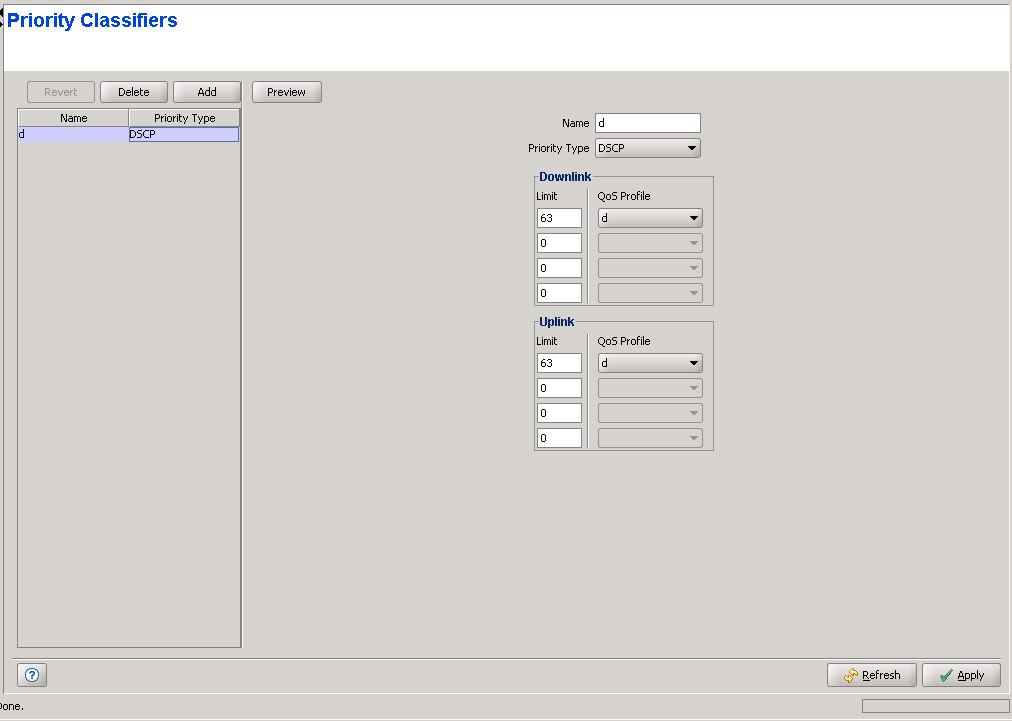
The Priority Classifier defines the QoS Profiles to be allocated to users/sessions differentiated by DSCP or 802.1p priority classifiers. Priority Classifiers are not applicable to VoIP Services in Ethernet CS Switching Mode. In IP CS Switching Mode only DSCP classification is supported.
The Priority Classifiers page displays a list of all Priority Classifiers in the database of the device. It also enables modifying existing Priority Classifiers, deleting Priority Classifiers from device, and defining new Priority Classifiers. The device can hold up to 255 Priority Classifiers.
|
The Priority Classifiers page comprises two sections: The Priority Classifiers Table (on the left side) and the Priority Classifier Editor section (on the right side). The Editor is available only when either selecting a Priority Classifier in the Priority Classifiers Table for viewing/modifying its parameters, or adding a new Priority Classifier.
The Priority Classifiers table provides the following details for each of the existing Priority Classifiers:
Parameter |
Description |
Name |
The Priority Classifier Name. |
Priority Type |
The Priority Classifier Type: DSCP or 802.1p. |

|
To view the details of a Priority Classifier: |
Select a Priority Classifier's entry. The current Priority Classifier configuration details will be displayed on the right side of the page. You can click on the Preview button to view the parameters of the Priority Classifier, including the details of the relevant QoS Profile(s).
|
To delete Priority Classifier(s) from the device: |
Select one or several Priority Classifier entries, click on the Delete button and then click Apply to remove the selected Priority Classifier(s) from the device. If you want to cancel the requested delete operation before clicking Apply, click on the Revert button.
|
To add a new Priority Classifier: |
Click on the Add button. The Priority Classifier Editor will be displayed on the right side of the page. To add a new Priority Classifier to the database of the device, fill in the necessary parameters and click Apply. You can click on the Preview button to view the parameters of the Priority Classifier, including the details of the relevant QoS Profile(s), before applying the change.
|
To modify an existing Priority Classifier: |
Select a Priority Classifier's entry. The current Priority Classifier configuration details will be displayed on the right side of the page, enabling modification of parameters. Click Apply to update the Priority Classifier's configuration. You can click on the Preview button to view the parameters of the Priority Classifier, including the details of the relevant QoS Profile(s), before applying the change.
Priority Classifier Configuration Parameters:
Parameter |
Description |
Name |
A Priority Classifier Name consists of up to 32 printable characters. |
Priority Type |
The Priority Classifier Type: DSCP or 802.1p. In IP CS Switching Mode only DSCP classifiers are available. |
Uplink/Downlink Limits |
The Uplink/Downlink Limit and QoS Profile parameters enables to define up to four ranges, where a different QoS Profile can be assigned to each range. The Limits (priority ranges) and assigned QoS Profiles are defined independently for the Uplink and Downlink, based on defining the upper Limit for each priority range. Up to 4 Limits (priority ranges), and the associated QoS Profiles, can be defined for each direction. A valid definition of Limits in each direction must comply with the following rules: • Each Limit must be higher than its predecessor. • The highest Limit must be the highest value available for the applicable priority type (7 for 802.1p, 63 for DSCP). • The same number of Limits (priority ranges) must be defined for the Uplink and Downlink. To define a Priority Classifier in case that no prioritization is used, select DSCP as the Priority Type, define 63 as the first Limit for both the Uplink and Downlink, and leave all other Limits empty. Alternatively, you can select 802.1p and define 7 as the Limit for both directions.
|
QoS Profiles |
A QoS Profile must be associated with each defined Limit. The drop-down menus includes all QoS Profiles that are available in the database of the device. |
Click on the Preview button to display a preview of the new/modified Priority Classifier, including complete details of the selected QoS Profiles.
|
|

