NOTE
During the test, the AU switches to receive mode and all SUs previously served by it are disconnected.
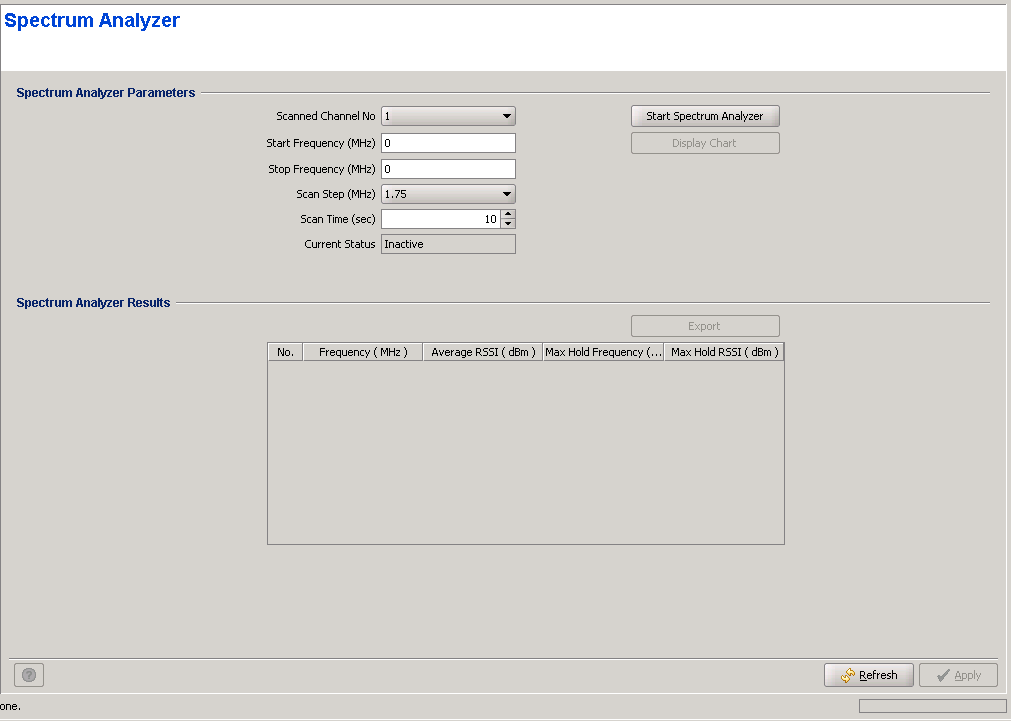
The Spectrum Analyzer page enables initiating a spectrum analysis test on selected frequencies, terminating an active test and viewing the results of the last test.
|
NOTE |
During the test, the AU switches to receive mode and all SUs previously served by it are disconnected. |
Using the parameters defined for the test, the AU scans the selected central frequencies. At each frequency it measures the RSSI for each of the applicable sub-carrier frequencies, and calculates the median RSSI (for all sub-carriers), the frequency of the sub-carrier with the highest RSSI (Max Hold Frequency) and the highest RSSI (Max Hold RSSI). To ensure that the measured values are not affected from transmissions of other AUs in the same network, the measurements are performed only in the time periods allocated for uplink transmissions.

|
CAUTION |
After completion of the test the AU must be reset to resume normal operation. |
|
The Spectrum analyzer Parameters are:
Parameter |
Description |
Scanned Channel No |
The ID (1-4) of the channel to be tested. Must be an enabled channe. |
Start Frequency (MHz) |
The first frequency (in MHZ) participating in the test. Must be in the range supported by the ODU connected to the channel. |
End Frequency (MHz) |
The highest frequency (in MHz) that may participate in the test (the actuall highest frequency depends on the defined Start Frequency and Scan step). Must be in the range supported by the ODU connected to the channel. |
Scan Step (MHz) |
The scanning step. The available options are 1.75, 3.5, 2.5 and 5 (MHz). The scanned frequencies are defined by Start Frequency + N*Scan Step where N is 0, 1, 2...and the scanned frequency is lower than or or equal to the End Frequency. |
Scan Time (sec) |
The test duration in seconds at each of the scanned frequencies. The available range is from 1 to 65535 seconds. |
Current Status |
The current status of the test:Inactive, Active or Finished |

|
To start a Spectrum Analyzer test: |
1 Enter the desired test parameter.
2 Click on the Start Spectrum Analyzer button. If the defined test parameters are OK, the name of the button will be changed to Abort Spectrum Analyzer and the Current Status will change to Active.
3 You can abort the test before its completion by clicking on the Abort Spectrum Analyzer button.
4 The test results are displayed in the Spectrum Analyzer Results section.
|
To view a chart of the results: |
Click on the Display Chart button. A Spectrum Analyzer Results Chart window will open, displaying the result on graphs. Place the cursor on (or next to) one of the points on a graph to view the exact details for this point.
.
|
To export the test parameters and results: |
Click on the Export button. The Export window will open, allowing you to define the name and location for a CSV file containing the test details.
|
|