To open the AlvariCRAFT Device Manager:
|
To open the AlvariCRAFT Device Manager: |
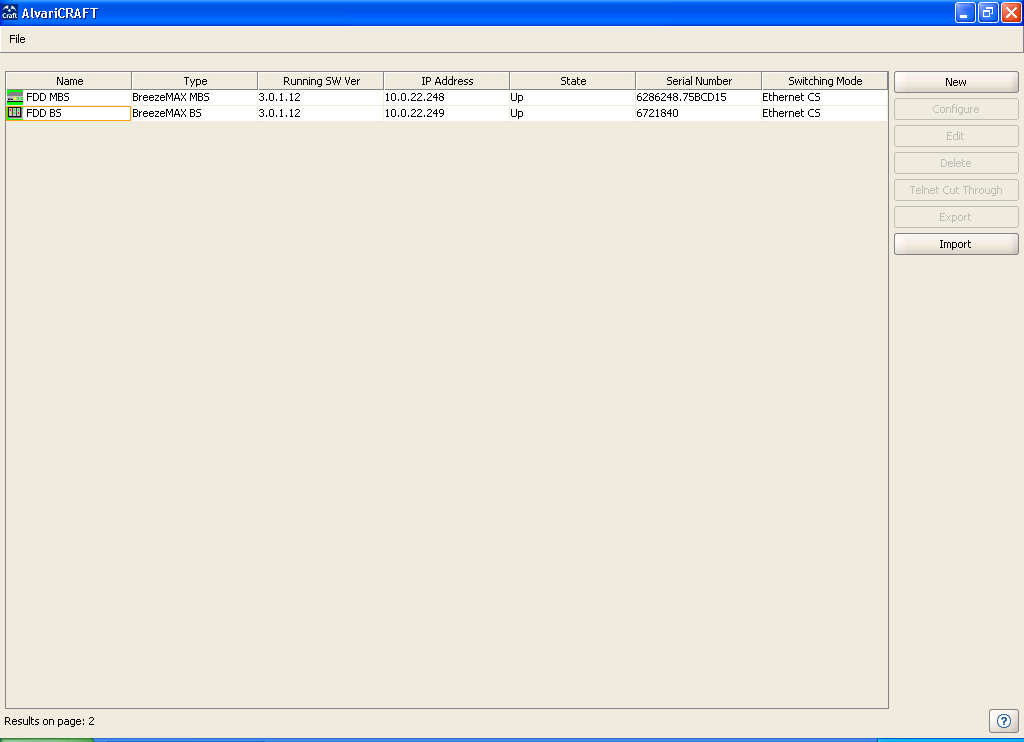
Double-click on the AlvariCRAFT icon or open it from the windows Start menu (Programs>AlvariCRAFT). The Main window opens, enabling view the current list of the Base Station(s) that can be managed by the AlvariCRAFT utility, add new Base Stations to the list, delete Base Stations from the list and edit the relevant properties of the Base Stations in the list. You can open the Device Manager or establish a Telnet cut-through to a selected device.
|

|
NOTE |
When opened for the first time, the Managed Devices list is empty. |
The following are the controls on the Main window:
Button |
Description |
New |
Adds a new device to the list of devices that can be managed by the utility. |
Configure |
Opens the Device Manager (see "Managing a Base Station" ), allowing to manage the selected device. Not available if two or more devices are selected, or if the State is other than Up. |
Edit |
Opens the Equipment Editor (see below) for the selected device, allowing to edit the device's SNMP properties and its name in AlvariCRAFT. The IP Address of a defined device cannot be editted. |
Delete |
Deletes the selected device(s) from the database. Select the device(s) to remove and click Delete. The application prompts you for confirmation. You can always redefine deleted devices. |
Telnet Cut Through |
Opens a Telnet session to the selected device. Not available if more than one device is selected, or if the State is other than Up. |
Export |
Exports the list of managed devices with the relevant setting to a Comma Separated Values (csv) file. |
Import |
Imports a Comma Separated Values (csv) file with managed devices and their settings and add them to the list of managed devices. An existing device will be skipped. |
|
To add a Base Station to the Managed Devices list: |
1 Click on the New button to open the Equipment Type selection window.
|
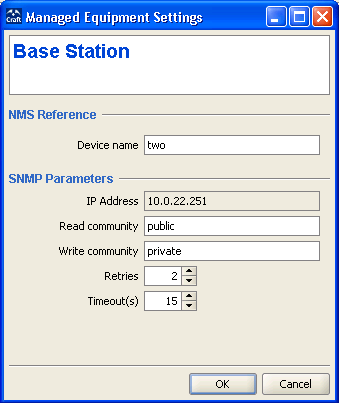
2 From the drop-down menu, select the Equipment Type: BreezeMAX BS (modular Base Station) or BreezeMAX MBS (Micro Base Station). Click OK. The Equipment Editor opens, allowing to define the Device Name and SNMP properties of the device to be managed.
|
The Equipment Editor includes the following fields:
Parameter |
Description |
NMS Reference |
|
Device Name |
The device's name in the AlvariCRAFT utility. |
SNMP Parameters |
|
IP Address |
The device's IP Address. Read-only when editing the properties of a previously defined device. |
Read community |
The Read community string (password) for SNMP get operations. This string is used by the SNMP agent to allow/disallow SNMP read access. The default Read Community is public. |
Write community |
The Write community string (password) for SNMP set operations. This string is used by the SNMP agent to allow/disallow SNMP write access. The Write community can also be used for read (get) operations. The default Write Community is private. |
Retries |
The maximum number of retries for SNMP/TFTP communication with the Device. The range is from 0 to 255. The default is 2 retries. |
Timeout(s) |
The maximum time in seconds that the requesting process waits for a response from the Device before attempting a retransmission (or aborting if the maximum number of retries has been reached). The available range is 1 to 3600 seconds. The default is 15 seconds. |
3 Enter the Device Name (optional), IP Address, Read community and Write community. Click OK.
4 The device's is added to the Managed Devices list.
For each defined device, the following information is displayed in the Managed Devices list:
Parameter |
Description
|
Name |
The name of the device as defined in the Equipment Editor (may differ from the Device Name defined in the device). |
Type |
The type of device: BreezeMAX BS or BreezeMAX MBS. |
Running SW Ver |
The running software version of the device (NPU/MBS). Displayed only after connecting with the device. |
IP Address |
The IP address of the device (the port used for accessing the device). |
State |
The connection state of the device: Up if AlvariCRAFT can communicate with it, Unreachable for a device that was reached in the past but cannot be reached currently, or Unknown for a device that was never reached by the AlvariCRAFT utility. |
Serial Number |
The serial number of the device(NPU card/MBS). Displayed only after connecting with the device. |
Switching Mode |
This parameter is not applicable for FDD systems (always Ethernet CS) |
|
NOTE |
If the Authorized Managers list in the device is not empty, the AlvariCRAFT station must be defined as an Authorized Manager. Configuring wrong communities during the initial definition of the device in the Equipment Editor will cause the device's State to be presented as Unknown or Unreacheable. |
|
To manage a device: |
Double-click on the selected entry in the Managed Devices list, or select it and click on the Configure button. The Device Manager for the selected entity opens, displaying the main page for the device.
|
|